Conditions
Gate a mapped field on skip-if-empty, a value comparison, or a hand-written Liquid expression — so a field only appears in the output when it genuinely applies.
Not every mapped field should always appear in the output. A middle name only exists for some patients. A bed location only makes sense for an inpatient encounter. Conditions let a field mapping declare when it applies — so instead of the field always showing up (sometimes with a blank or misleading value), it's simply left out of the output entirely when the condition doesn't hold.
What it looks like end to end
Here, an admission message wires five fields — two of them conditionally.
Middle Name only emits a value when the patient actually has one on file.
Location only emits a value when the visit's patient class is
I (inpatient) — an outpatient visit has no bed to report.
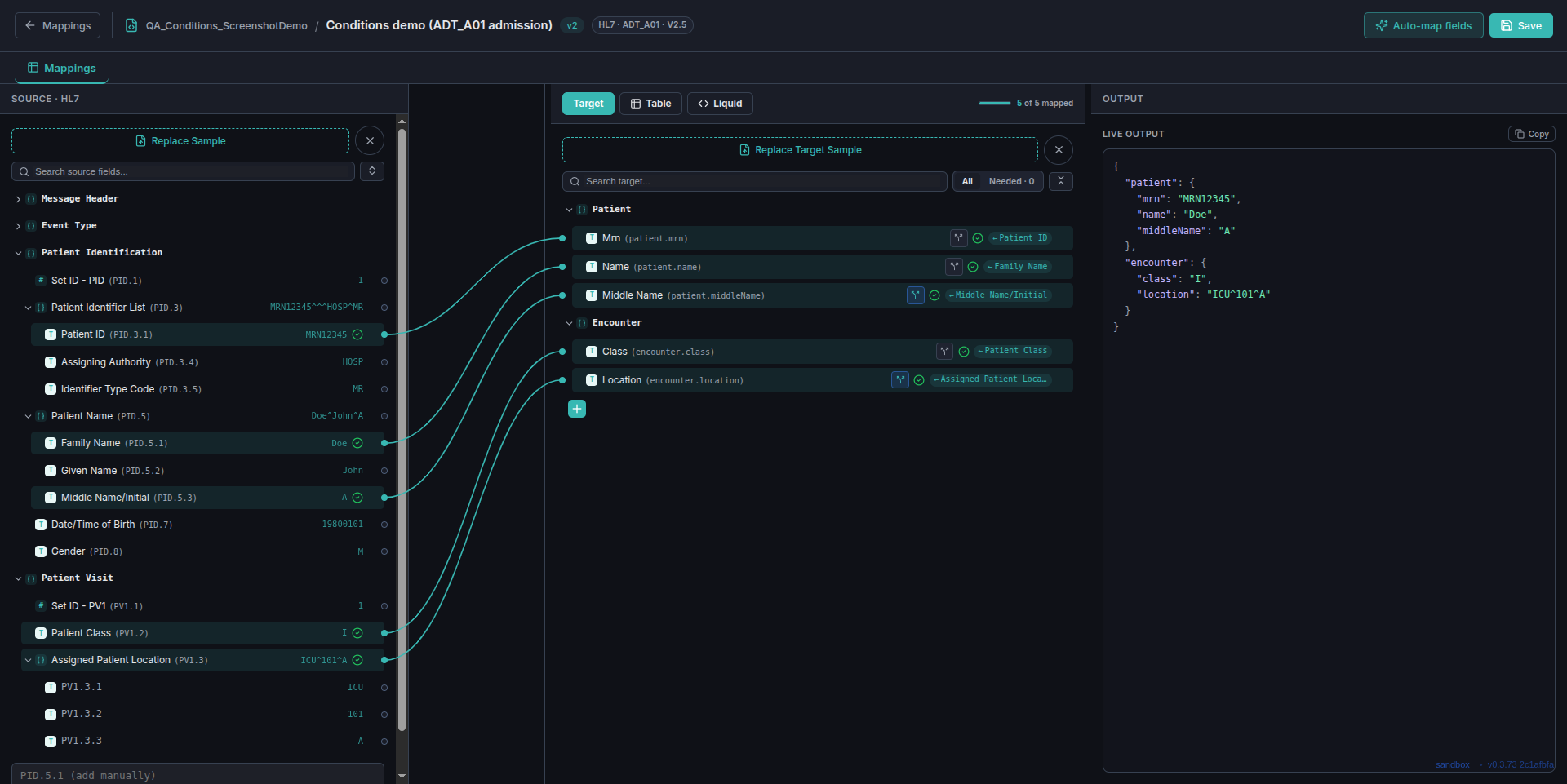
Middle Name
and Location both appear in Live Output, right alongside the three
unconditional fields.How you know a field is conditional
Every mapped row carries a small condition icon next to its checkmark. Idle, it's a plain outline — click it to add a condition. Once a condition is set, the same icon turns blue, so a glance down the tree tells you which fields are unconditional and which aren't.
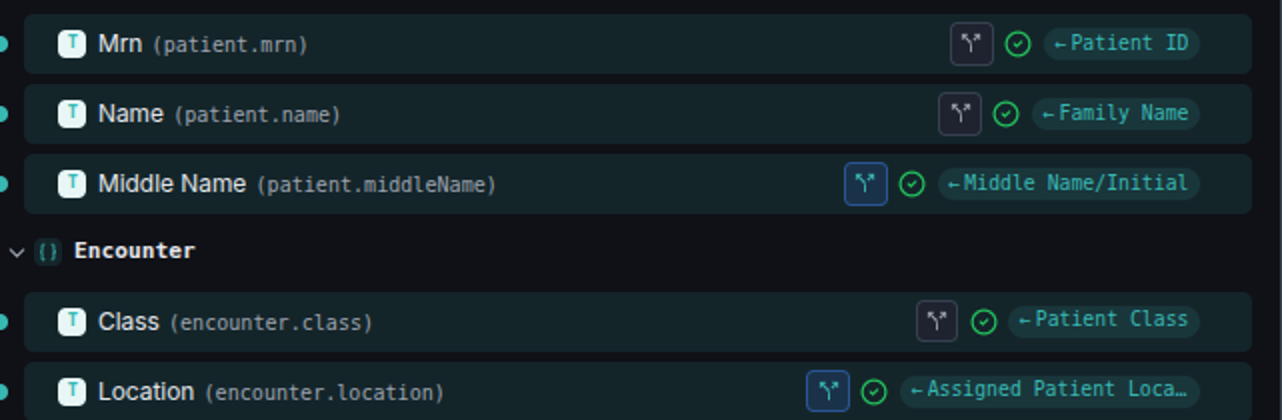
Class has no condition: the icon sits idle,
a plain outline.
2 — Middle Name has one: the same icon turns
blue. Clicking it either way opens the same modal.
Three ways to gate a field
Clicking the condition icon opens one modal with a per-term mode picker. Every condition starts here, whichever of the three you need:
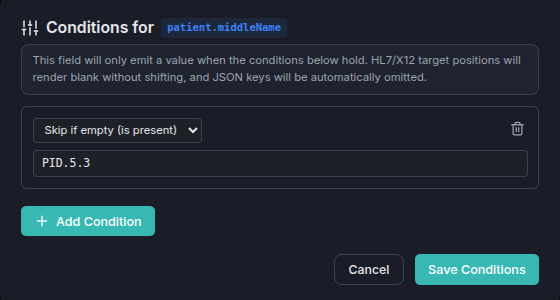
PID.5.3), pre-filled automatically, but it can point at any
field: skip a whole address block unless a "has address" flag is set, for
instance.
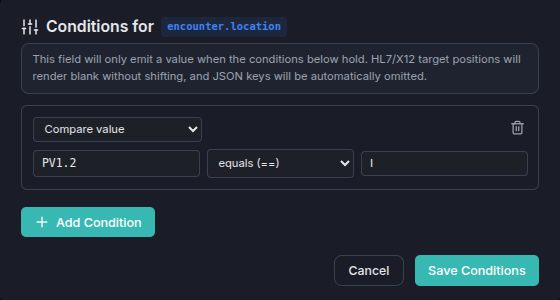
Location
when PV1.2 (Patient Class) equals I.
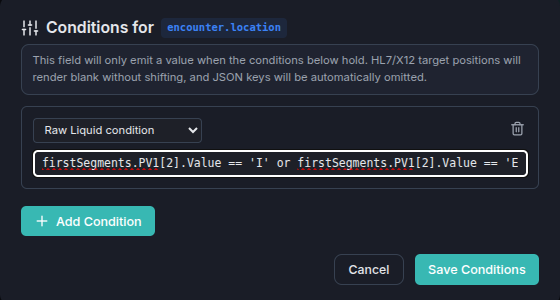
PV1.2 == 'I' or PV1.2 == 'E'. A raw expression replaces the
picker entirely for that term rather than combining with it.
When to reach for each
Skip if empty covers the common case — a field that simply shouldn't appear when there's nothing to put in it. Compare value is for a specific value deciding inclusion, without writing any Liquid yourself. Raw Liquid is there for everything else — combining several fields with your own logic, once presence and simple comparisons aren't expressive enough. Whichever mode, the effect is the same: HL7 and X12 target positions render blank without shifting anything else out of place, and JSON keys are omitted entirely.