Workflow Library
Ready-to-use ConnectHealth workflows, grouped by category. Browse a category below, or add your own.
Add your own workflow
Two ways to get a workflow into ConnectHealth — import one you already have (including any download from this library), or build a new one from scratch.
Import a workflow file
Best for workflows downloaded from this library — grab the JSON and bring it straight in.
- 1
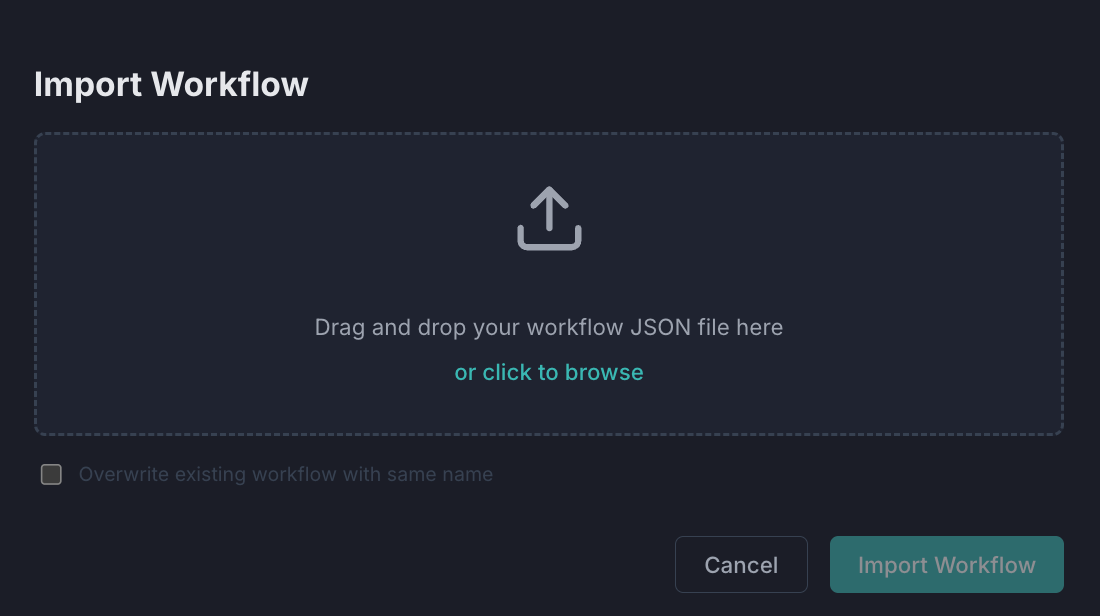
Click Import in the Workflow Builder, then drag your .json file onto the upload area — or click to browse.
Any .json file exported from ConnectHealth or downloaded from this library works here.
- 2
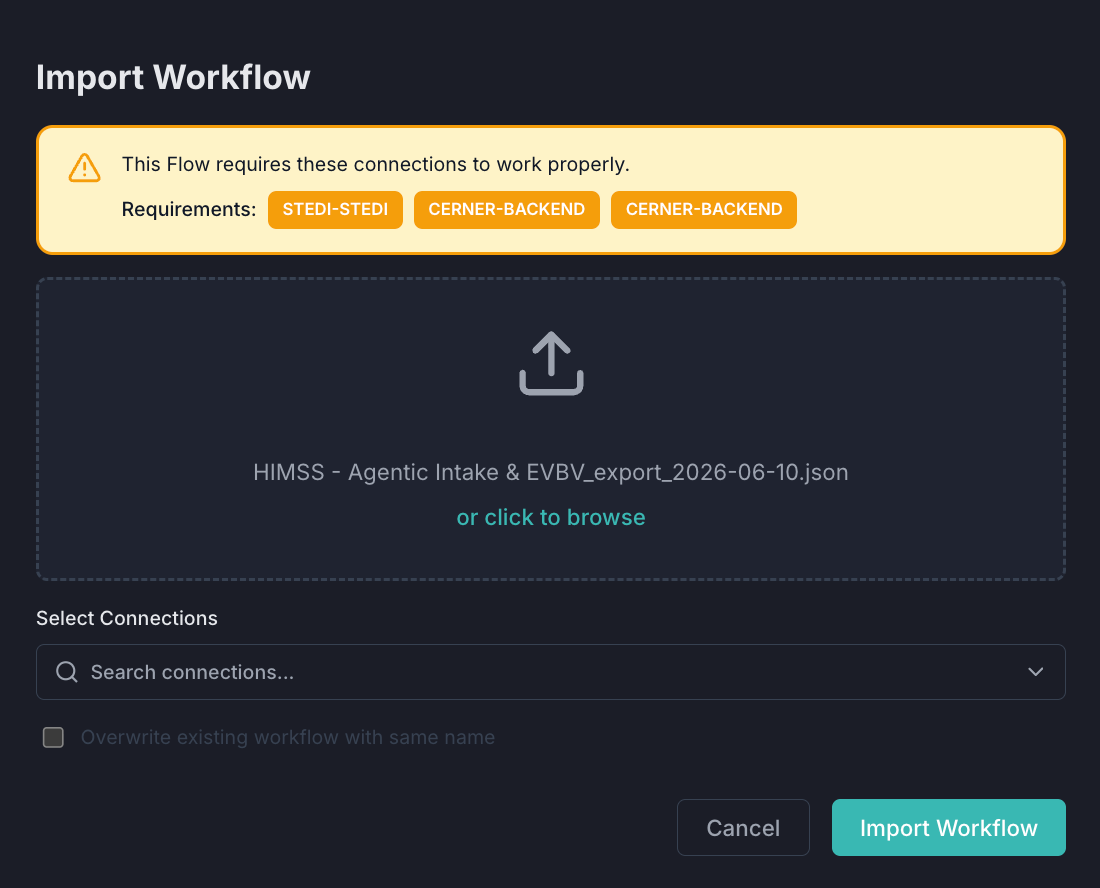
If the workflow has connection requirements, an orange warning appears listing them. Select matching connections from the dropdown.
Green badge = connection already satisfied. Orange badge = not yet set up. You can still import and wire connections later.
- 3
Optionally tick Overwrite existing workflow with same name, then click Import Workflow.
Leave overwrite unchecked for a fresh copy. The workflow opens in the builder automatically on success.
Create a new workflow
Start from a blank canvas and build it step by step.
- 1
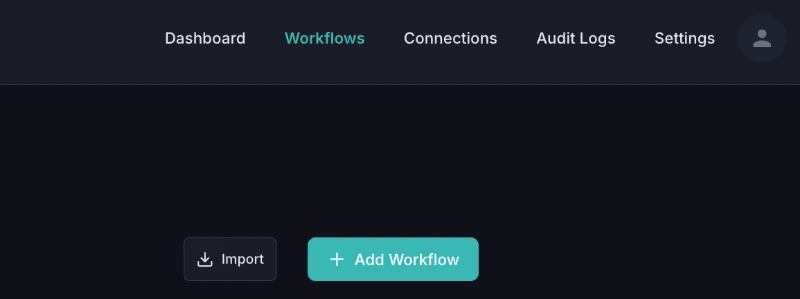
Click + Add Workflow in the top-right of the Workflows page.
You'll also find Import next to it if you want to bring in an existing JSON instead.
- 2
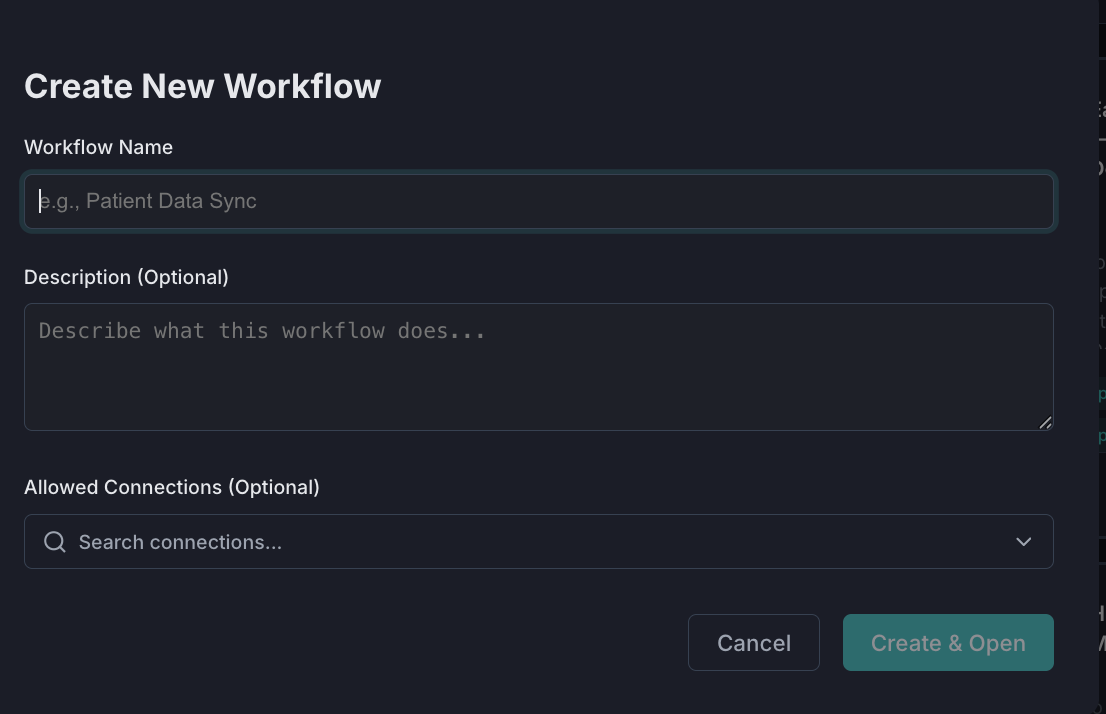
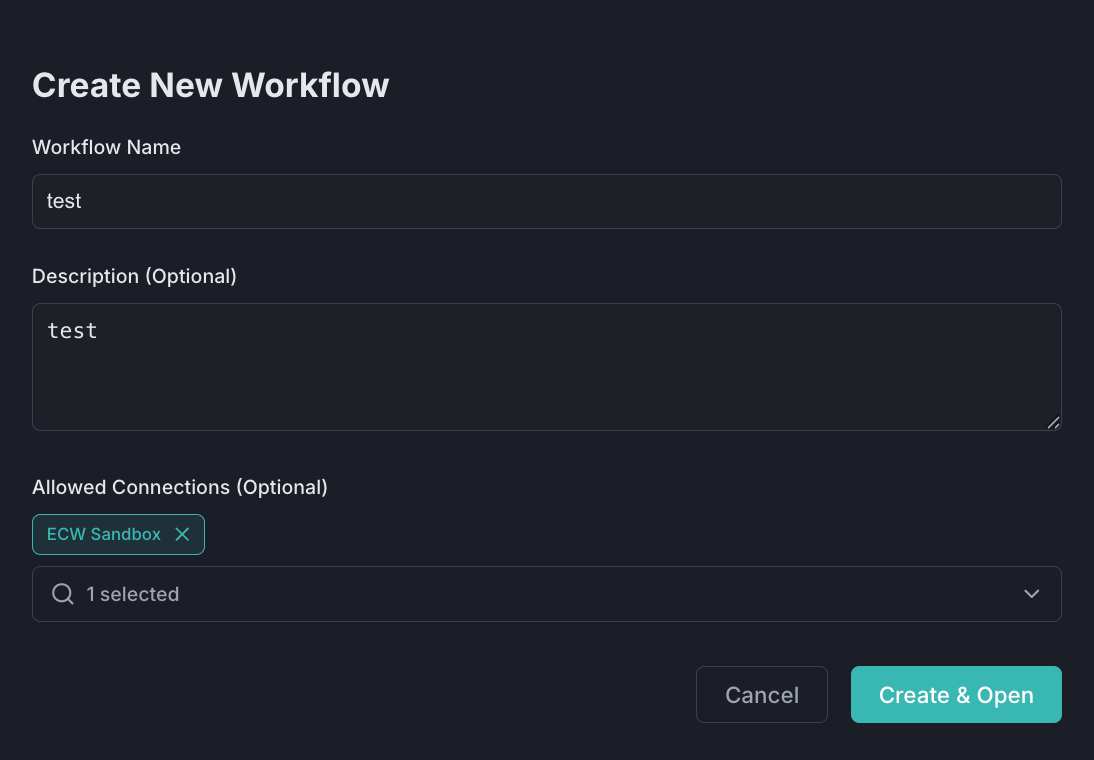
Enter a Workflow Name, an optional description, and any Allowed Connections the flow may use.
Only connections added here are accessible inside the flow. You can edit this at any time from the workflow settings.
- 3
Click Create & Open to open the builder on a blank canvas.
The workflow is saved immediately. Start wiring nodes straight away or come back to it later.
Browse by category
Pick a category to see its ready-to-use workflows.
HL7
Move device data, lab results, and clinical messages into the EHR in real time — using HL7, the messaging standard hospitals have relied on for decades.
FHIR
Read and write structured patient data to the EHR using FHIR — the modern data standard behind today's health apps.
Insurance
Check a patient's coverage, confirm benefits, and move claims between providers and payers — automatically.
Agentic
AI agents that talk to patients, answer questions from the chart, and take care of the busywork — with safety guardrails built in.
Mapping
Convert HL7 v2, X12, and JSON messages into FHIR R4 or any other target format — visually, with the mapping engine, no custom parsing code.