Export & Import
Export a mapping project to a single file, bring it into another environment, and choose what happens when a project with the same id already exists there.
A mapping built in one environment often needs to exist in another — moving from a sandbox into staging, or handing a mapping to a teammate working against a different deployment. Export turns a mapping project into a single portable file; import brings it back in, and gives you a clear choice if a project with that same id is already sitting there.
Export a project
From the Mapping Projects list, open a project's menu and choose Export. That downloads one JSON file containing the whole project — every template, every field mapping, every filter — everything needed to recreate it exactly, with no separate pieces to track down.
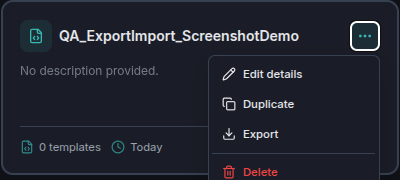
.json file.Bring it back in
Import Project, on the same list, does the reverse: pick the exported file, and the project — every template it contained — is recreated exactly as it was. This is the whole mechanism for moving a mapping between a sandbox and staging, or sharing one with a teammate on a different deployment: export the file, hand it over or copy it across, import it there.
If it already exists
An exported file carries the project's original id. Importing it somewhere that already has a project with that same id doesn't silently overwrite anything or silently fail — you're asked directly: replace the existing project with the imported version, or bring the import in as a separate, new project instead.
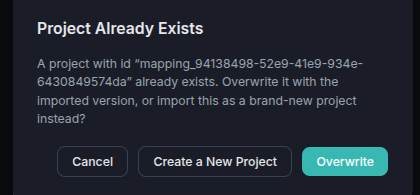
"…(2)").
3 — Overwrite replaces the existing project's
content with the imported version, under the same id.
Neither choice is silent, and neither is reversible after the fact without another import — pick Create a New Project whenever you're not certain the existing copy is safe to lose.
A mapping used in a workflow travels with it
A Mapper step's workflow export isn't just the workflow — exporting a workflow that references a mapping project automatically bundles that project's data into the same file. Importing the workflow elsewhere brings its mapping along with it, so a workflow and the mapping it depends on don't have to be moved as two separate steps.