Filters & Liquid
Apply reusable filters like ISO-date formatting and uppercase to a mapped field, and drop into the compiled Liquid view to hand-edit anything the visual tools don't cover.
A source value doesn't always arrive in the shape the target needs. An HL7 date like
19800101 needs to become 1980-01-01 for FHIR. A name might need
to be uppercased for a downstream system that expects it that way. Filters
handle exactly this — a small, reusable transform you attach to a field mapping, applied
on top of the source value before it reaches the output.
What it looks like end to end
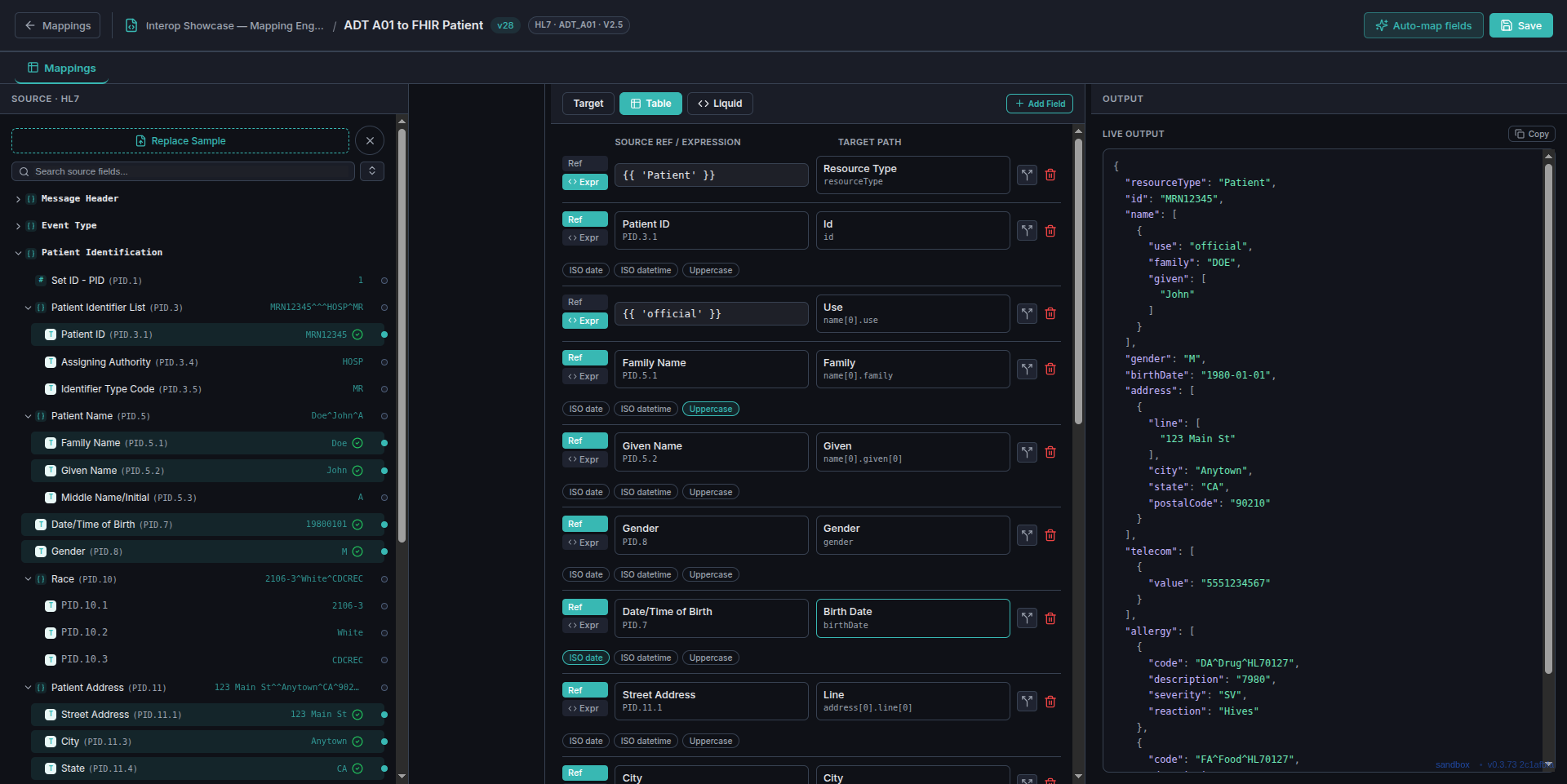
Every Ref-mode row in the Table view carries a row of filter chips beneath it — one
per filter available in the project. Click a chip to turn that filter on for that field;
click it again to turn it off. Here, Family Name has Uppercase
turned on and Date/Time of Birth has ISO date turned on —
Live Output shows the effect immediately: "family": "DOE" and
"birthDate": "1980-01-01", without editing the source data at all.
On, off, and everything left alone
A filter chip is a plain toggle — active chips are filled, inactive ones are just an outline. Most fields don't need a filter at all, and that's the common case: leave every chip off and the value passes through unchanged.
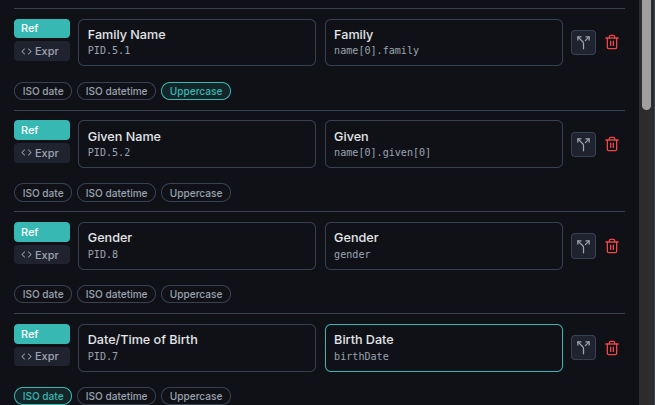
Family Name's Uppercase chip is
filled: this field's value is transformed.
2 — Given Name has every chip left outlined: no
transform, the source value passes straight through.
3 — Date/Time of Birth's ISO date
chip is filled: the raw HL7 date gets reformatted on the way out.
Under the hood: it's just a Liquid pipe
Every mapping compiles down to Liquid — the templating language the whole engine runs
on — and the Liquid tab shows you that compiled text directly. Turning on a filter chip
adds a pipe to that field's accessor: Uppercase becomes
{{ ... | upcase }}, ISO date becomes
{{ ... | add_hyphens_date }}. Nothing mysterious is happening behind the
chip — it's writing the same text you could type yourself.
Hand-editing takes effect immediately
The Liquid view isn't read-only. Edit the compiled text directly — change a filter,
adjust an accessor, add logic the chip picker doesn't have a button for — and the
change applies right away. Here, hand-changing Family Name's pipe from
upcase to downcase immediately turns the Live Output value
from "DOE" to "doe", with no extra step to apply it.

upcase to
downcase, right in the Liquid text.
2 — Live Output already shows the result: "doe",
lowercase, the moment the edit lands — no separate apply or save step.
When to reach for which
Filter chips cover the common, repeatable transforms — reach for them first, since they're one click and nothing to type. The Liquid view is there for everything else: a filter that doesn't exist as a chip, a small tweak to exactly what a field computes, or just wanting to see the real text behind the visual tools. Both views stay in sync with the Target tree and Table as you move between them, so there's no wrong place to make a change.