Using in a Workflow
Add a Mapper step to a workflow, point it at a saved mapping project, and choose between auto-routing by message type or pinning one specific mapping.
A mapping you've built and tested in the editor doesn't do anything on its own — it needs to run inside a live integration, on real incoming messages. The Mapper step is that bridge: drop it into a workflow, point it at a saved mapping project, and every message that reaches it gets transformed exactly the way you designed it in the editor — no re-implementation, no separate transform logic to maintain.
What it looks like end to end
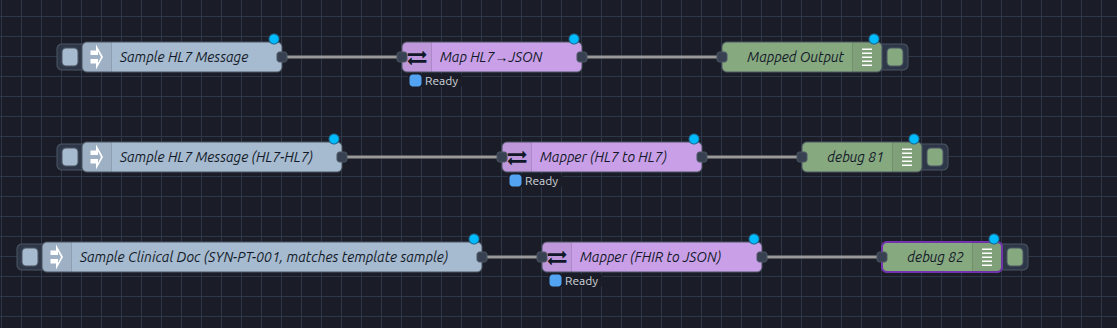
Here are three small test workflows, each a trigger feeding a raw message into a
Mapper step, which runs a saved mapping project and passes the result to a debug
output. The Mapper step itself doesn't care what format the message is in or where it
came from — the same node handles an HL7-to-JSON conversion, an HL7-to-HL7 reshape,
and a FHIR-to-JSON conversion, each pointed at a different saved mapping project. In a
real integration, the trigger would typically be an HL7 In listener or a
FHIR webhook instead of a manual test message.
Point it at a project
Double-clicking the Mapper step opens its configuration: a Project
dropdown listing every saved mapping project, an Input field for where
the raw message lives on the incoming message object (msg.payload by
default), and an Output field for where the mapped result gets written.
The node's own description spells out the contract plainly: raw message in — HL7 v2, X12,
or JSON — mapped data out, with errors routed to a Catch node rather than crashing the
flow, and PHI kept out of any error detail.
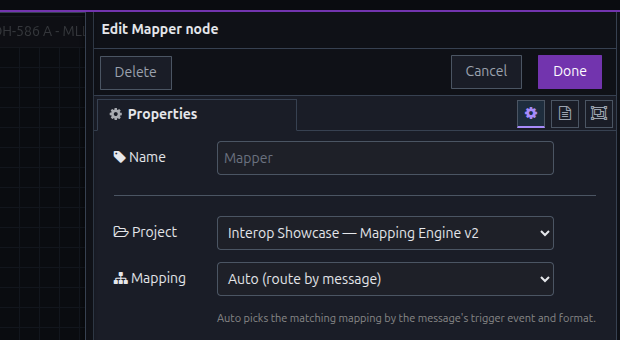
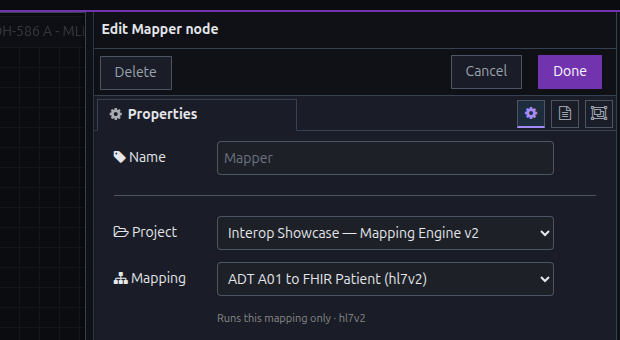
Auto-route by message, or pin one mapping
Once a project is selected, the Mapping dropdown offers every template in that project by name, plus an Auto option. Auto is the default and the right choice for most workflows — it inspects each incoming message's trigger event and picks the matching template automatically, so one Mapper step can serve a project with several message types. Pin a specific template instead when a Mapper step should only ever run one mapping, regardless of what else the project contains — useful when a workflow is dedicated to a single message type and you want that guaranteed, not inferred.
Same engine, same output
The Mapper step doesn't approximate what the editor does — it runs the identical
compiled mapping. There's no separate transform to keep in sync: whatever the editor's
Live Output panel showed for a message is exactly what msg.payload holds
after the Mapper step runs that same message, because both are the same compiled
template executing against the same input. Build and verify a mapping in the editor,
wire it into a workflow, and the workflow's output is proven the moment the editor's
output was.
What's next
Once a mapping is running inside a workflow, the natural next question is how to move that workflow — and the mapping it depends on — to another environment cleanly. That's covered next, in export and import.